Orbi Firmware Update: An Easy Step-by-Step Guide
Keeping your Netgear Orbi mesh system updated is one of the best ways to ensure your home network stays fast and secure. An Orbi firmware update fixes known bugs, patches security vulnerabilities, and sometimes even adds new features to your router and satellites.
The biggest mistake I see people make is unplugging their router while an update is running. This can corrupt the system and cause your network to fail completely. The process is actually very safe if you follow a few basic rules and give the system the time it needs to finish.
This guide will walk you through the entire firmware update process in simple terms. You do not need to be a networking expert to get this done safely.
What You Need Before Updating
Before you start checking for new firmware, make sure you have a few things ready:
- Your phone or tablet with the NETGEAR Orbi app installed
- A computer connected via Ethernet if you plan to update manually
- A stable internet connection
- 10 to 15 minutes of time where nobody in the house needs internet access
I strongly recommend telling your family that the internet will go down for a few minutes. This prevents someone from unplugging the router because they think the WiFi is broken.
How to Perform an Orbi Firmware Update Using the App
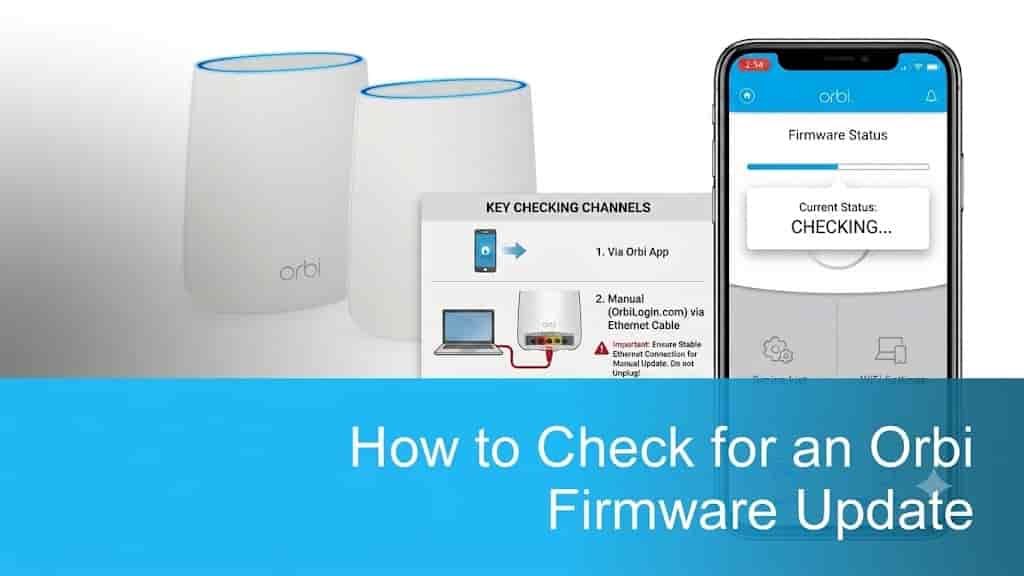
The easiest way to update your system is through the official NETGEAR Orbi app. This method handles the router and all connected satellites automatically.
Step 1: Open the NETGEAR Orbi App
Launch the app on your mobile device and log in. Make sure your phone is connected to your Orbi WiFi network. If you are on cellular data, the app might not communicate properly with your router.
Step 2: Access the Update Menu
Tap on the menu icon or go to the settings section. Look for the option labeled Router Settings or System Administration, and then find the Firmware Update button.
Step 3: Check for New Firmware
Tap the button to check for updates. The app will communicate with Netgear servers to see if a newer version is available for your specific Orbi model.
Step 4: Start the Update and Wait
If an update is found, follow the on-screen prompt to begin the installation. This is the most important part of the process. The router and satellites will download the file, install it, and restart.
Do not close the app, and absolutely do not unplug the power from your router or satellites. Let the devices reboot on their own. Once the lights return to normal, the update is finished.
How to Update Orbi Firmware Manually
Sometimes the app fails to find the latest version, or the automatic update gets stuck. When this happens, a manual update through a web browser is the most reliable fallback method.
Step 1: Download the Firmware File
Go to the official Netgear support website on your computer. Search for your specific Orbi model number. Download the latest firmware zip file for both your router and your satellites, and extract those files to your desktop.
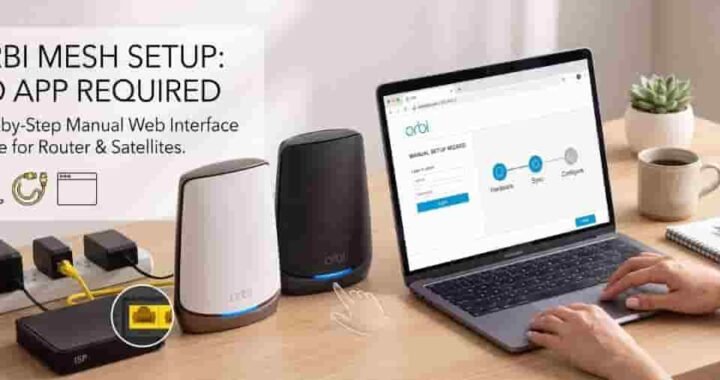
Step 2: Log Into Your Orbi Web Interface
Open a web browser and type the default Orbi login address into the address bar. Enter your admin username and password.
If you cannot get the page to load, it usually means your device is not properly connected to the router network. See our guide on fixing orbilogin.com problems for more help.
Step 3: Navigate to the Update Section
Once logged in, click on the Advanced tab, then go to Administration, and select Firmware Update. Choose the Manual Update tab.
Step 4: Update the Satellites First
I always recommend updating your satellites before the main router. Click on the satellite you want to update, upload the extracted firmware file, and click apply. Wait for the satellite to restart completely before moving on.
Step 5: Update the Main Router
After all satellites are updated and back online, repeat the process for your main router. Upload the router firmware file, click apply, and wait for the system to reboot.
If you need help getting through the initial setup pages before doing this, our first-time Orbi setup guide covers the basics of getting your router online.
Common Orbi Firmware Update Problems
Even with a perfect setup, updates can occasionally run into minor issues. Here are the most frequent problems and how to solve them.
- The update gets stuck: If the app has been updating for over 30 minutes with no progress, close the app and check the router lights. If the lights are solid white or standard operational colors, the update likely finished but the app simply froze.
- Satellites lose connection: Sometimes a satellite fails to reconnect after a router update. Simply move the satellite closer to the router, press the sync button on both devices, and wait for them to pair again.
- Cannot access the internet after updating: Reboot your modem first, wait a minute, and then reboot your Orbi router. A simple restart usually fixes temporary conflicts caused by the update.
What Should You Do After an Update?
Once the Orbi firmware update is complete, reconnect your main devices and verify that your network is running smoothly.
Take a moment to check your WiFi speeds in different rooms. You should also log back into the app to confirm that the firmware version numbers have changed and that no further updates are pending. Running the latest firmware ensures your network is as safe and fast as possible.
Frequently Asked Questions
How long does an Orbi firmware update take?
A standard Orbi firmware update takes between 5 to 10 minutes to complete. During this time, your router and satellites will download the file, install it, and restart. Do not interrupt power during this process.
What happens if I unplug my Orbi during an update?
Unplugging your Netgear Orbi during a firmware update can corrupt the system software, potentially bricking the device and causing your home network to fail completely. Always let the router finish its reboot cycle.
Why is my Orbi app not finding the new firmware update?
The Orbi app may fail to find new firmware if there is a temporary communication error with Netgear servers, or if you are connected via cellular data instead of your Orbi WiFi. If this happens, you can bypass the app and perform a manual firmware update using a web browser.
Should I update the Orbi router or satellite first?
When updating manually, you should always update your Orbi satellites first. Once all satellites are updated and back online, proceed to update the main Orbi router.