How to Setup Orbi Without App: Manual Web Interface Guide
Setting up a new Netgear Orbi mesh WiFi system is usually a smooth process, but sometimes the mobile application simply refuses to cooperate. Whether the app keeps crashing, fails to find your router, or you just prefer having more control over your network settings right from the start, learning how to setup Orbi without app is a great option.
Many people do not realize that you can execute a manual configuration using a standard web browser. In fact, many IT professionals prefer this method. It provides a clearer view of the settings and avoids the bugs that sometimes plague mobile setup wizards. The process is straightforward, and you do not need to be a tech expert to get your home network running perfectly.
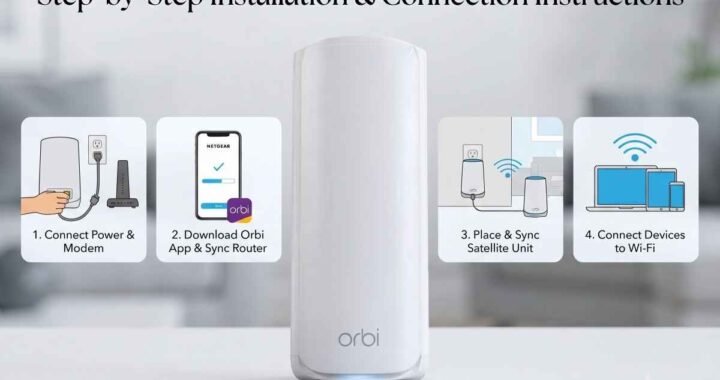
Check out our quick and easy Orbi installation guide for additional tips.
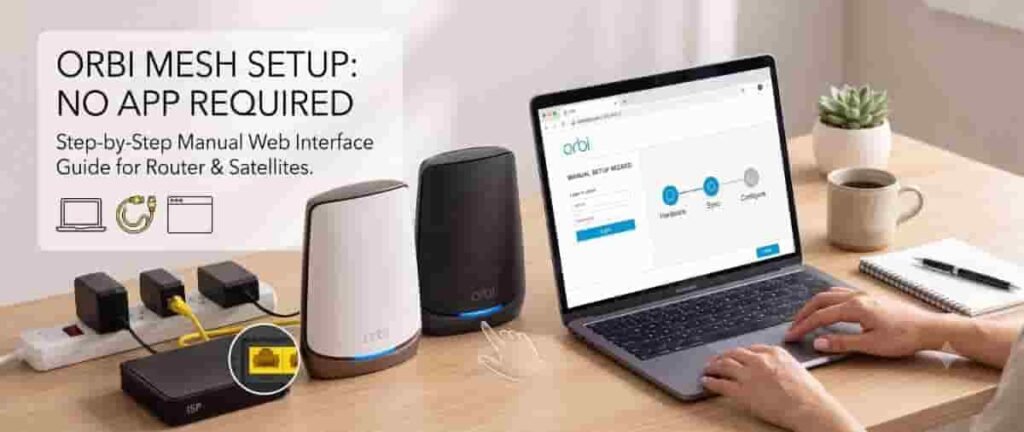
This guide will show you exactly how to setup Orbi without app manually by logging into the router's web interface.
What You Need Before You Start
Before you begin plugging in your devices, gather these essential items to make the manual configuration go smoothly:
- Your Orbi router, satellites, and their respective power adapters.
- The ethernet cable provided in the Netgear box.
- A computer with an updated web browser (a laptop works best for mobility).
- Your ISP (Internet Service Provider) modem, powered on and connected to the internet.
Pro Tip: Bring your Orbi satellites into the exact same room as the main router for this initial setup. Once they are successfully synced, you can move them to their permanent zones around the house.
Step-by-Step Guide to the Orbi Web Setup
Follow these steps carefully. Do not rush the hardware boot times; giving the router a few minutes to fully power on will save you a lot of troubleshooting later.
Step 1: Connect the Hardware
First, unplug your ISP modem from its power source. If it has a battery backup, remove that as well. Wait about one minute, then plug the modem back in and let it fully boot up.
Next, use the provided ethernet cable to connect your modem to the yellow internet port on the back of your Orbi router. Plug the Orbi router into a power outlet and turn it on. Wait until the ring light on the Orbi router glows solid white. This indicates the router is ready for setup.
Step 2: Connect Your Computer to the Router
You have two choices for this step:
- Wired: Connect your computer directly to the Orbi router using a second ethernet cable.
- Wireless: Connect via WiFi. Look at the sticker on the bottom of your Orbi router to find the default network name (SSID) and password. Connect your computer to this default network.
Step 3: Log Into the Web Interface
Open your preferred web browser and type orbilogin.com into the address bar. Press enter, and you should be greeted by the Netgear Orbi setup wizard. If that web address does not work, try typing the default IP address: 192.168.1.1.
Having trouble? Read our guide on fixing orbilogin.com problems.
A login prompt will appear. Use the default credentials found on the router sticker. Typically, the username is "admin" and the password is "password".
Step 4: Follow the Setup Wizard
The on-screen wizard will now guide you through the rest of the process to setup Orbi without app. It will verify your internet connection, prompt you to create a secure admin password, and ask you to set up security questions. Write down this new admin password immediately, as you will need it for future network management.
You will also be asked to create a custom WiFi network name (SSID) and password. Pick something secure. Once you save these new settings, the router will reboot. You must then manually reconnect your computer to the newly created WiFi network.
Step 5: Sync Your Orbi Satellites
Plug your Orbi satellites into power outlets in the same room. Wait for their ring lights to turn solid white. Press the Sync button on the back of your main router, and within two minutes, press the Sync button on the back of the satellite.
The satellite ring light will pulse white and then change color:
- Solid Blue: Strong, successful connection.
- Solid Amber: Fair connection (move it closer to the router later).
- Solid Magenta: Sync failed (move it closer and try again).
Once synced, unplug the satellites and move them to their permanent rooms.
Common Setup Problems and Quick Fixes
Even when you setup Orbi without app, you might hit a minor technical bump. Here are a few quick fixes for common router problems:
- Cannot reach the setup login page: Ensure your computer is not connected to a VPN or using cellular data. You must be strictly connected to the Orbi default network or hardwired via ethernet.
- No internet connection detected: Power cycle your modem again. Sometimes, ISP modems hold onto the MAC address of your previous router and refuse to hand out a new IP address to the Orbi.
- Setup wizard loops: If the web interface keeps sending you back to the start screen, clear your browser cache or try opening orbilogin.com in an incognito/private window.
Over to You!
Choosing to setup Orbi without app is often the fastest and most reliable way to get your home network online. If you followed all the steps above and still cannot connect to the internet, your ISP might require specific configurations (like PPPoE or MAC address cloning).
Drop a comment below if you are still facing issues, or share your experience if this guide helped you get your Orbi mesh system online. We would love to hear how the manual configuration went for you!
Frequently Asked Questions (FAQs)
Can I set up my Orbi router without a smartphone?
Yes, you can easily setup Orbi without app by using a standard web browser on a desktop computer or laptop. Simply connect your computer to the router's default WiFi network and navigate to orbilogin.com to access the manual setup wizard.
Where should I place my Orbi satellites during the initial setup?
It is highly recommended to plug your satellites into power outlets in the exact same room as your main router during the initial configuration. Once they are successfully synced (indicated by a blue ring light), you can unplug them and move them to their permanent locations in your home.
What are the default login credentials for the Orbi web interface?
When prompted for a login on the router setup page, the default username is typically "admin" and the default password is "password". You can verify these details on the sticker located at the bottom of your main router. The setup wizard will require you to change this password for network security.
What do the different ring light colors mean when syncing an Orbi satellite?
After pressing the Sync buttons on both devices, the satellite's ring light will pulse white and then hold a solid color. Solid blue means a strong connection, amber indicates a fair but weaker connection, and magenta means the sync failed and the devices are likely too far apart.
How do I fix the Netgear setup wizard if it keeps looping?
If you get stuck in a loop while trying to configure your network through the web interface, clear your web browser's cache and cookies. Alternatively, try opening the router login page (orbilogin.com or 192.168.1.1) in an incognito or private browsing window.
Why is my Orbi router not detecting an internet connection from the modem?
This usually happens if your ISP modem is still holding onto the MAC address of your old router. To resolve this, power cycle your modem completely. Unplug it from the wall, remove any backup batteries, wait for a full 60 seconds, and plug it back in before connecting it to the new Orbi router.