Editor: Orbihelp Editorial Team
Published:
A new Orbi 360 should make your home WiFi easier to use, but a misplaced satellite or incorrect modem connection can leave rooms offline. Start with the router, confirm internet access, and then extend coverage one satellite at a time.
A successful Netgear Orbi 360 setup starts with the right connections and ends with testing where you actually use the internet. This guide walks you through installation, satellite placement, and common problems so you can get your home network working reliably.
Before You Start Your Netgear Orbi 360 Setup
The Orbi 360 series uses an RBE361 router and compatible RBE360 satellites. Check the labels on the units, then gather these items before disconnecting your current network:
- Your Orbi router, satellites, and supplied power adapters.
- The included Ethernet cable.
- An active internet connection and your existing modem or ISP gateway.
- A smartphone with the Orbi app installed.
- Your NETGEAR account details, or access to email to create an account.
Download the app while your existing WiFi still works. Also, check that your internet connection is working before replacing the router; otherwise, an existing service problem can look like an installation failure.
Check Whether Your ISP Equipment Is Also a Router
If your ISP gateway already handles routing, decide which device will perform that role. Orbi can operate in access point mode behind an existing router, although some router features become unavailable.
Alternatively, ask your provider whether its gateway supports bridge mode or IP passthrough for use with your own router. Follow instructions specific to your gateway.
Step-by-Step Netgear Orbi 360 Setup Instructions
Step 1: Connect the Router to Your Internet Equipment
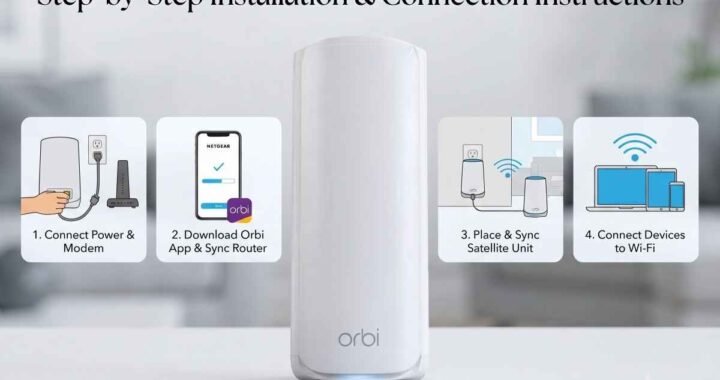
Find the Orbi router’s yellow 2.5G Internet port. Connect your modem’s Ethernet output to this port using the supplied cable; the separate LAN port serves wired devices.
For a standard modem installation, disconnect power from the modem and old router first. After connecting the Ethernet cable, restart the modem and let its connection lights stabilize, then power on Orbi. Leave satellites unplugged until the app requests them.
Step 2: Open the Orbi App
Sign in to your NETGEAR account and select the option to set up an Orbi system. Scan the QR code on the router when prompted.
Allow the permissions needed for discovery and follow the prompts to join the router’s setup WiFi. Keep your phone connected to that network while configuration runs; button names can vary by app version.
Step 3: Create Your WiFi and Administrator Credentials
Choose a WiFi network name and a strong password. Then create a separate administrator password for managing router settings.
Save both securely, along with any recovery information requested. Reconnect your phone to the newly named WiFi network when prompted, then continue installation.
Step 4: Add Your Orbi Satellites
Plug in the satellites when prompted and let the app discover them. To add another compatible unit later, open the app menu and select Add Satellite, then follow its instructions.
Check the satellite’s front light:
- Pulsing white: Starting up.
- Blue: Connected with a good link.
- Amber: Connected, but the link could improve.
- Magenta: Unable to synchronize.
- Off after successful synchronization: Normal operation.
Blue and amber lights typically turn off after approximately three minutes. A dark light alone does not mean the satellite has failed.
Step 5: Adjust Satellite Placement
Place each satellite between the router and the area needing coverage, where it can still receive a usable signal. Putting it inside an existing dead zone can leave it with a weak connection to relay.
Keep units in open areas, away from large metal objects and enclosed cabinets. Test placement before settling on a permanent location, especially when signals must cross floors or thick walls.
Step 6: Check for Firmware Updates
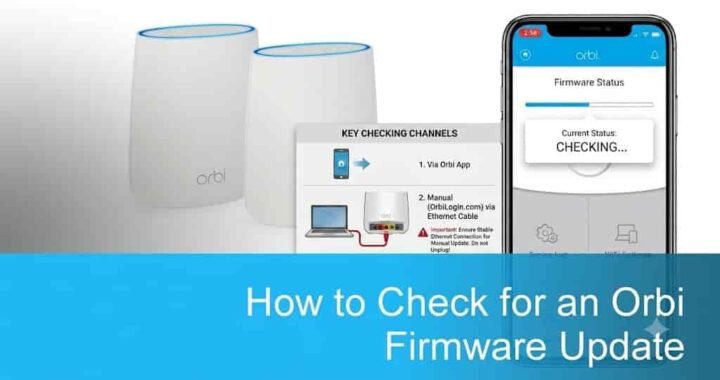
Once connected, open the app’s Settings > Router Settings > Check for Updates option. Install any available update and allow the system to finish restarting before testing.
Verify Your Netgear Orbi 360 Setup
Test with the same phone or laptop in several locations: beside the router, near each satellite, and in your usual work or streaming area. Record download speed, upload speed, and whether the connection remains stable.
Use these checks to narrow down problems:
- Slow everywhere: Check your internet plan, ISP service, and upstream equipment.
- Fast near the router but slow elsewhere: Revisit satellite placement.
- Only one device struggles: Check that device’s software and WiFi capabilities.
Orbi 360 is a dual-band WiFi 7 system using 2.4 GHz and 5 GHz; it does not provide a 6 GHz network. Older WiFi devices can connect, but your internet plan and client hardware still limit achievable speeds.
Troubleshoot Common Installation Problems
If Netgear Orbi 360 setup stops midway, note the exact error before changing anything. Confirm your phone is connected to Orbi, reseat the Internet cable, and check whether your ISP equipment is online.
For a satellite that will not synchronize, move it closer to the router. Press the router’s Sync button, then the satellite’s Sync button within two minutes.
Use our Orbi Setup Troubleshooting guide for further checks. For color-related symptoms, consult Orbi router light checks, remembering that router and satellite indicators have different meanings.
Frequently Asked Questions
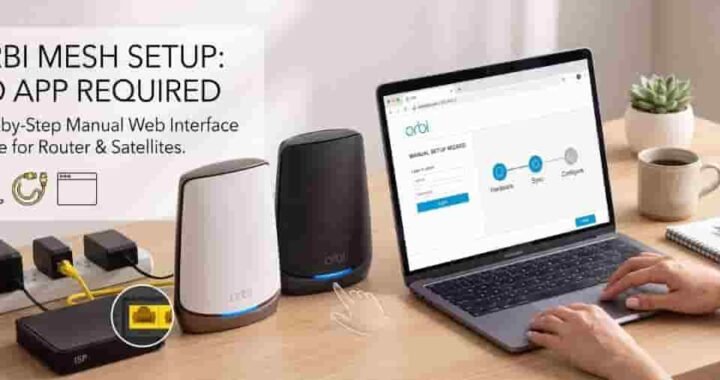
Can I complete Netgear Orbi 360 setup without the app?
Yes. Connect a computer to Orbi and use the browser-based setup wizard. The 360 manual lists orbilogin.com for Windows and Android, and orbilogin.local for Apple devices. Enter the address while connected to Orbi.
Does the Orbi 360 replace my modem?
No. It provides routing and WiFi, so you still need the internet handoff required by your provider, such as a cable modem or fiber ONT.
Can I reuse satellites from an older Orbi system?
Use RBE360 satellites with the RBE361 router. Other Orbi satellite families are not interchangeable, so check the model label before adding a unit.
Why will my smart plug or printer not connect?
Some older devices have trouble with newer WiFi security settings. Orbi WiFi 7 systems provide an IoT network for compatible settings; check the device’s requirements before configuring it.