Your new mesh system is out of the box, and you’re ready to connect the home office, living room TV, and upstairs bedrooms. The next step is getting the router, satellites, and network settings working together in the right order.
This Netgear Orbi 870 setup guide takes you from unpacking to connecting your everyday devices. You’ll learn which port to use, when to power on your satellites, and how to create your home WiFi network without unnecessary configuration changes.
Before You Begin Your Netgear Orbi 870 setup
Set aside about 30 minutes, with extra time available for software updates. Schedule installation when nobody needs the existing connection for a meeting, online class, or other important activity.
Have these items ready:
- Your Orbi 870 router and included satellites.
- The supplied power adapters and Ethernet cable.
- An active internet connection and your provider’s connection equipment.
- An iPhone, iPad, or Android device with the NETGEAR Orbi app.
- Your NETGEAR account credentials, or access to email to create an account.
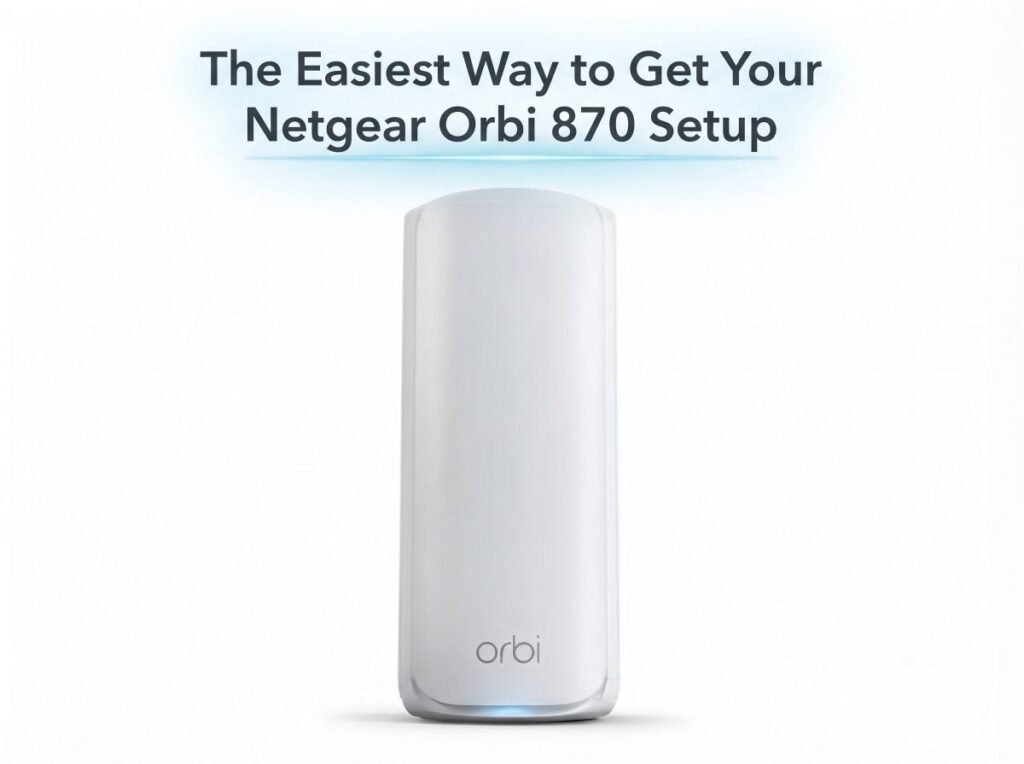
Identify the router before connecting anything. The router has a 10G Internet port, while the satellite units extend your network to other areas of the house.
Understand Your Internet Equipment
Orbi provides your home network; it does not replace a cable modem or activate an internet service plan. U.S. cable customers generally retain a compatible modem, while fiber customers use the Ethernet connection provided by their ONT or gateway.
If your provider supplies a combined modem and router, decide which device will handle routing. Provider-approved bridge or passthrough arrangements and Orbi access point mode are different installation choices, so confirm the appropriate arrangement before changing gateway settings.
Complete Your Netgear Orbi 870 setup With the App
1. Install the App and Identify Your System
Download the NETGEAR Orbi app from your device’s app store. Open it, sign in or create a NETGEAR account, and choose the option to set up an Orbi system.
Follow the prompt to scan the QR code on the router’s sleeve or base. Keep the router label accessible because it also provides the default wireless network details.
2. Connect the Router to Your Internet Source
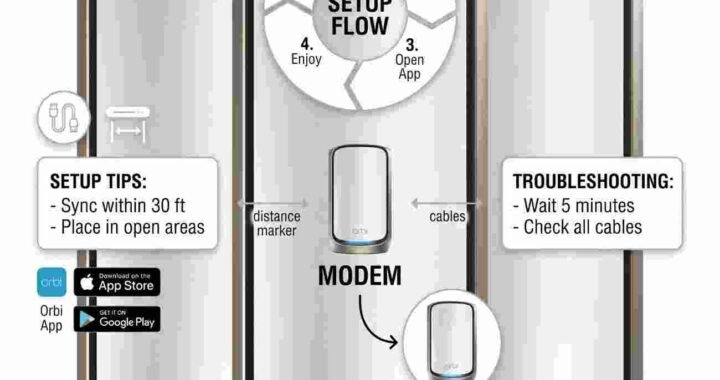
For a standard cable modem installation, follow the app’s instructions to disconnect power from the modem and existing standalone router. Connect the modem’s Ethernet port to the Orbi router’s 10G Internet port using the supplied cable.
The router’s 2.5G LAN ports are for local wired connections, such as a desktop computer or network switch. Identifying these ports now makes later connections straightforward.
Power up the modem and Orbi router as directed. Allow the modem’s startup indicators to stabilize and wait for the router’s readiness indication before continuing; leave satellites unplugged until the app requests them.
3. Join the Default Orbi Network
When prompted, open your phone’s WiFi settings and select the default network identified by the app or router label. Enter the supplied wireless password, then return to the Orbi app.
Stay connected to this network while the installation continues. The app uses that connection to guide you through configuring your new system.
4. Create Your WiFi Name and Password
Choose a recognizable WiFi network name, also called an SSID. Avoid including your street address, phone number, or other personal information in a name visible to nearby devices.
Create a strong WiFi password, then set a separate router administrator password when prompted. Complete any recovery questions presented during installation.
Keep these credentials distinct:
- WiFi password: Connects phones, computers, and other devices.
- Administrator password: Protects access to router settings.
- NETGEAR account: Supports account-based app features and registration.
Save them securely before moving on. Reconnect to your personalized WiFi network when the app instructs you to do so.
5. Add Your Orbi Satellites
Power on the satellites when the app reaches that stage. Follow its discovery prompts and allow the system to identify the included units.
Satellite placement deserves attention during Netgear Orbi 870 setup. Each unit needs a usable connection to the mesh network, so position it between the router and the area you want to serve, rather than at the farthest edge of the house.
For practical placement:
- Choose open shelves or tables with nearby outlets.
- Keep units out of closed cabinets.
- Avoid placing them behind large appliances or metal furniture.
- Consider walls, floors, and the distance between units.
For a two-story home, an open upstairs landing can be a useful starting location. Check the app’s network view to confirm that your satellites appear before finishing.
6. Finish Updates and Connect Your Devices
Complete any firmware update offered during installation. Keep the router and satellites powered while the update runs, and wait for the app to indicate completion.
Next, connect your everyday devices using the new network name and password. Begin with a phone and computer, then add TVs, printers, and smart home equipment.
Open a few websites and check connectivity in the rooms you use most. Your internet plan, device capabilities, and placement all affect actual performance.
Keep Your Setup Details Handy
Record your network name, router model, satellite locations, and installation date. These details make future network management easier without repeating the initial setup.
For separate reference material, bookmark our Orbi router light guide and Orbi Troubleshooting help page.
Frequently Asked Questions
Can I complete Netgear Orbi 870 setup without the app?
Yes. The Orbi 870 supports installation through its browser interface from a computer connected to the router. The app is the more guided option for most households, while browser installation suits users who prefer configuring the system on a computer.
Does the Orbi 870 need a modem?
For cable internet, you generally need a separate compatible modem. Fiber installations may provide Ethernet through an ONT or provider gateway instead. Orbi connects to that internet source.
Do I need WiFi 7 devices to use this system?
No. Compatible older WiFi devices can join the network. WiFi 7 features require compatible client hardware, so upgrading your router does not automatically give every existing device WiFi 7 capabilities.
Do satellites need an Ethernet connection?
No. Satellites can connect wirelessly. The Orbi 870 also supports wired backhaul, which uses Ethernet between mesh units when suitable cabling is available.