
Fixed: Orbi RBS50 Showing Offline? 5 Ways to Force Sync
Seeing your Orbi RBS50 showing offline in the app can be incredibly frustrating. You bought a mesh system to eliminate dead zones, and suddenly a section of your house has no WiFi. The good news is that a satellite showing as offline rarely means the hardware is broken.
Quick Fix: How to reconnect an offline Orbi RBS50
- Verify the satellite is plugged directly into a working wall outlet.
- Move the satellite into the same room as the main router.
- Press the Sync button on the router, then on the satellite within 2 minutes.
- Wait for the satellite's LED ring to turn solid blue.
- If it fails, check for mismatched firmware via orbilogin.net or perform a paperclip reset.
The most common reason an Orbi RBS50 drops offline is a temporary sync loss or a simple power interruption. Sometimes, a background update causes the satellite to simply forget how to talk to the main router. This guide will walk you through exactly how to get your offline RBS50 satellite back online in plain English.
Why Is Your Orbi RBS50 Showing Offline?
Before jumping into the fixes, it helps to understand why this happens. Your Orbi router and the RBS50 satellite need a constant, clear connection to share internet traffic. When the app says the satellite is offline, it means that internal connection is broken.
This usually happens for one of these reasons:
- The satellite lost power or the wall outlet is turned off.
- The physical distance between the router and the satellite is too far.
- Thick walls, floors, or large appliances are blocking the WiFi signal.
- The router and the satellite have different firmware versions installed.
- The satellite simply lost its synchronization with the router after a brief outage.
Orbi LED Status Cheat Sheet
Before you start troubleshooting, check the color of the LED ring on top of your satellite. It tells you exactly what is going wrong.
| LED Ring Color | What It Means | Next Step |
|---|---|---|
| Solid Blue (3 mins) | Connection is excellent. | You are online. No action needed. |
| Solid Amber (3 mins) | Connection is fair. | Consider moving the satellite slightly closer. |
| Solid Magenta | Sync failed / No connection. | Move satellite closer and press the Sync button. |
| Pulsing White | Booting up or attempting to sync. | Wait 3-5 minutes for it to resolve. |
Step-by-Step Fixes for an Offline Orbi RBS50
Follow these steps in order. They start with the easiest fixes and move toward the more involved solutions. Do not skip straight to a factory reset.
Step 1: Check the Power and Lights
It sounds too simple, but always check the power first. Make sure the RBS50 is plugged directly into a working wall outlet. Avoid using power strips if possible, as they can sometimes cause irregular power delivery.
Look at the LED light on the top or back of the satellite. If there are no lights at all, press the power button on the back. If it still will not turn on, test a different wall outlet. The satellite cannot sync if it does not have stable power.
Step 2: Move the Satellite Closer to the Router
If the satellite has power but you still see the Orbi RBS50 showing offline, the distance might be the problem. A satellite cannot extend a WiFi signal it cannot receive in the first place.
Unplug the RBS50 and move it into the same room as your main Orbi router. Plug it in and wait about three to five minutes for it to fully start. Open your Orbi app and check if it comes back online. If it does, your previous location was simply too far away or blocked by structural interference.
Step 3: Manually Sync the Router and Satellite
If bringing the satellite closer did not work automatically, you need to manually force them to connect again. This process is called syncing.
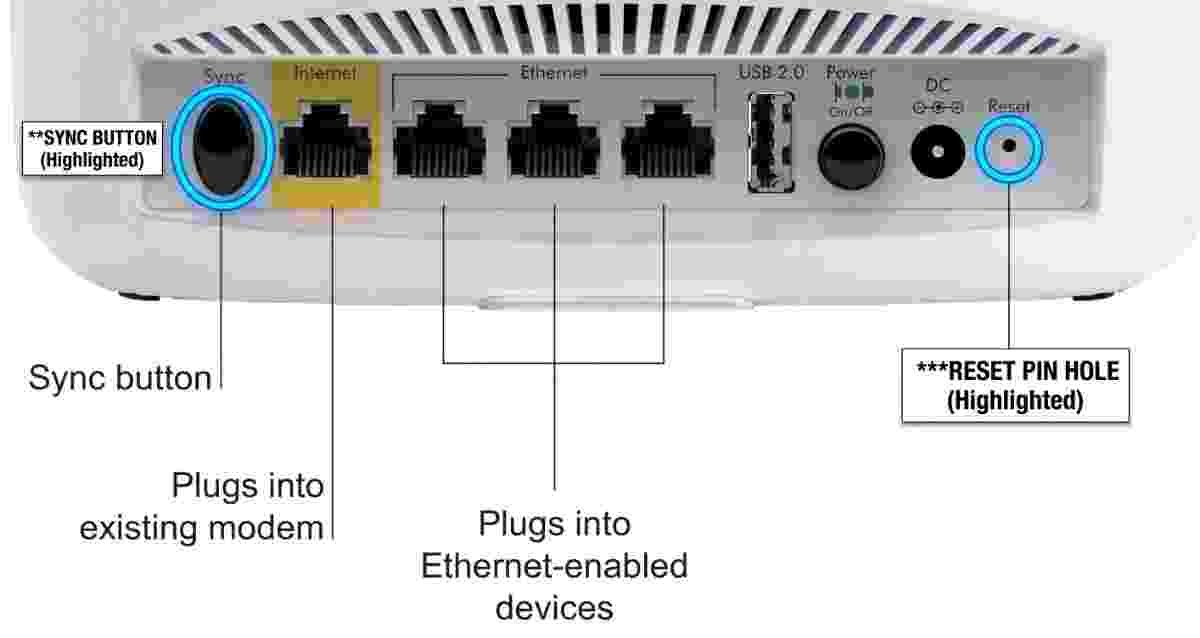
First, press the Sync button on the back of your main Orbi router. Within two minutes, press the Sync button on the back of your RBS50 satellite.
Watch the ring light on the top of the satellite. It will pulse white while it attempts to connect. If the sync is successful, the light will turn solid blue for about three minutes before turning off. If the light turns magenta, the sync failed, and the devices are still not talking to each other.
Pro Tip: If wireless syncing keeps failing, try an Ethernet Backhaul connection. Plug an Ethernet cable directly from the router into the satellite to force them to pair. Once paired, you can unplug the cable and move the satellite back to its wireless location.
If you are struggling to get the lights to respond, our sync guide covers more details on how to properly sync your Orbi satellite. If you are also having login issues, check out our guide on why you Can’t connect to Orbilogin.net.
Step 4: Check for a Firmware Mismatch
Your Orbi router and the RBS50 satellite are designed to run the same firmware version. If your router updated automatically but the satellite was powered off during the update, they will have mismatched versions. When this happens, they often refuse to communicate.
To fix this, you will need to log into the router dashboard through a web browser and check the firmware versions for all attached devices. If they do not match, you must update them manually so they speak the same language. Learn How to update Orbi Firmware manually here.
Step 5: Restart Your Entire Network
If you are still dealing with the Orbi RBS50 showing offline, a complete network restart often clears out hidden communication errors. Order matters here, so do not unplug everything at the same time.
Unplug your modem, your Orbi router, and your RBS50 satellite. Wait for a full minute to let the memory clear.
Plug in the modem first and wait for it to come fully online. Next, plug in the Orbi router and wait for its light to stabilize. Finally, plug in the RBS50 satellite. Give the entire system about five minutes to rebuild the mesh network before checking the app again.
What to Do If the RBS50 Is Still Offline?
If you have tried all the steps above and are still seeing your Orbi RBS50 showing offline, it is time for a factory reset. This wipes the memory of the satellite so you can set it up fresh, just like it came out of the box.
Keep the satellite plugged in and turned on. Find a paperclip and press it into the small reset hole on the back of the RBS50. Hold it there for about ten to fifteen seconds until the power light flashes amber. Let the device reboot.
Once it finishes restarting, open your Orbi app, go to the main menu, and choose the option to add a new satellite. Follow the instructions on the screen to pair it with your router again.
For a deeper dive into the reset process, you can follow our complete guide to reset your Orbi to factory settings.
Final Thoughts on Satellite Placement
Once your RBS50 is back online, remember that proper placement is essential for a stable mesh network. Place the satellite about halfway between your main router and the area where you need better WiFi coverage. Test the connection for a few days to make sure the satellite stays online and your devices get the smooth connection they need.
Frequently Asked Questions (FAQs)
Why does my Orbi satellite keep disconnecting randomly?
Random disconnects are usually caused by the satellite being too far from the router, WiFi interference from large appliances, or an outdated firmware version. Moving the satellite closer and checking for updates usually resolves this.
Can I hardwire my Orbi RBS50 satellite to the router?
Yes. This is called Ethernet Backhaul. You can connect an Ethernet cable directly from the LAN port of your main Orbi router to the LAN port on your RBS50 satellite for a highly stable, wired connection.
How far can an Orbi satellite be from the router?
For the best wireless connection, place your Orbi RBS50 satellite about 30 to 40 feet away from the main router, ideally with minimal thick walls or metal obstructions between them.