RBS750 Satellite Blinking Red Power LED: Causes and Fixes
If the power LED on your NETGEAR Orbi RBS750 satellite blinking red, something is not quite right. NETGEAR treats a pulsing red power-button LED as a sign that the system needs attention. It is also worth noting that this is not the same as the front status light turning magenta, which usually points to a connection problem between the satellite and router.
If the red light showed up after a restart, power cut, reset, or firmware update, resist the urge to keep resetting the satellite. Start with the power supply, give it a clean reboot, and see whether it can finish booting normally. If the red power LED keeps blinking after that, the issue may be related to firmware or may need NETGEAR support.
A practical troubleshooting rule I recommend is to confirm whether the satellite can complete a normal boot before touching Sync or Reset. That one check separates a power or firmware problem from a simple mesh-connection problem and helps avoid unnecessary factory resets.
What Does a Blinking Red Power LED Mean on an RBS750?
The RBS750 uses more than one LED, and that is where people often get confused. Before changing anything, make sure you know which light is actually blinking.
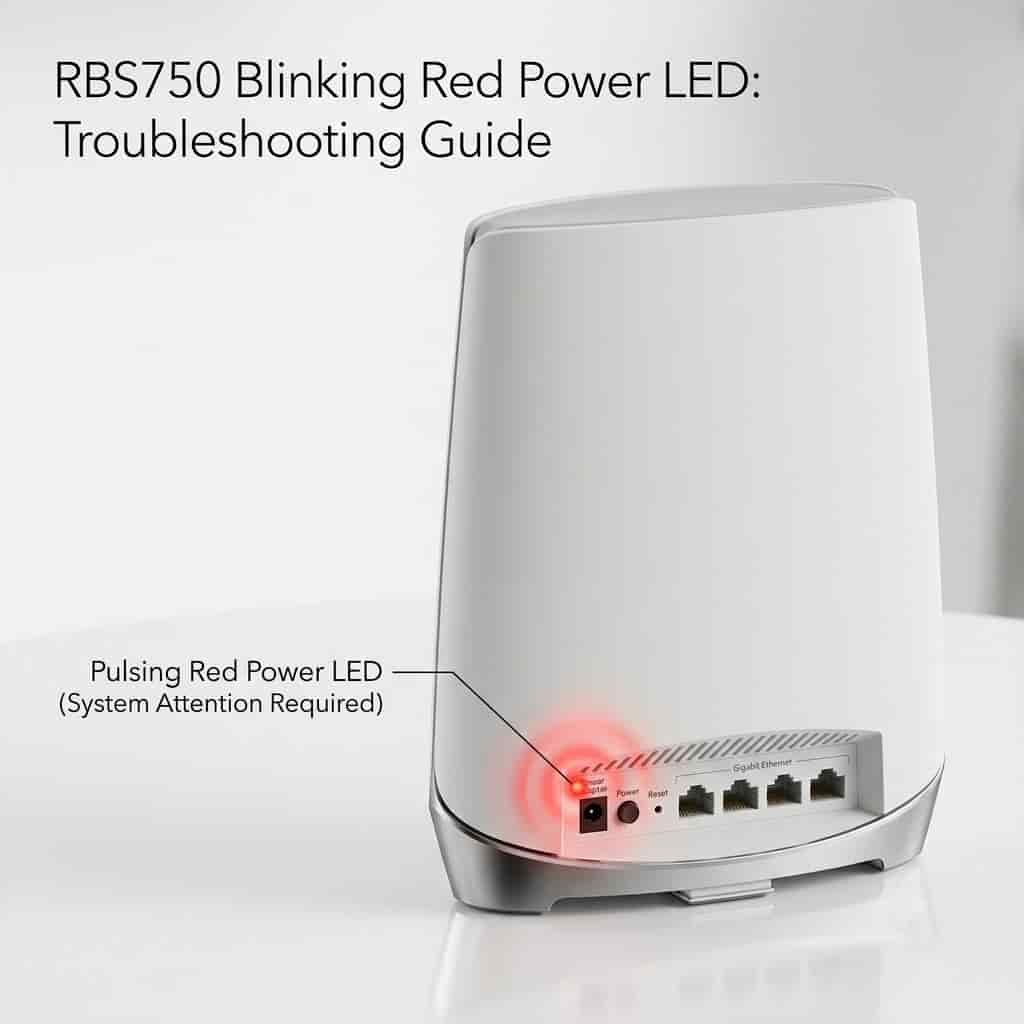
The power LED is on the rear of the satellite near the power controls. Under normal operation, a solid green power LED means the unit is powered on. Solid amber can appear while the device is rebooting. A pulsing amber LED can occur during a factory reset or firmware update. According to NETGEAR's Orbi LED guidance, a pulsing red power LED means the system might need attention.
The front or bottom status light communicates something different. Blue indicates a good router-to-satellite connection, amber indicates a fair connection, and magenta means the satellite cannot establish a proper backhaul connection or obtain an IP address.
That difference matters. If the rear power LED is the one blinking red, moving the satellite closer to the router alone probably will not fix the real problem.
Why Is My RBS750 Blinking Red?
There is not one single reason this happens every time. In most cases, it makes more sense to look at booting, power, or firmware first instead of assuming the satellite simply has a weak WiFi connection.
Common situations include:
- An interrupted or unsuccessful firmware update
- A temporary boot failure after a power interruption
- Unstable power from the adapter, outlet, extension board, or surge protector
- A satellite that cannot complete startup normally
- Firmware or software corruption
- A hardware problem that requires manufacturer support
When the red light first appeared can tell you a lot. If it started right after a firmware update, check the firmware side first. If it showed up after a power outage, begin with the power source and a full power cycle.
1. Give the RBS750 Time to Finish Booting
If the satellite has just restarted or finished an update, give it a little time before unplugging anything. Cutting power while firmware is still being written can turn a simple issue into a much harder recovery.
Leave the RBS750 connected to a stable wall outlet for several minutes and watch the rear power LED. During a normal restart, the LED state should eventually change as the satellite completes startup.
If you see the RBS750 blinking red for an extended period and the satellite never becomes available in the Orbi network, continue with the checks below.
2. Check the Power Adapter and Wall Outlet
Unstable power can make the satellite behave strangely while it is starting up, so this is worth checking before you move on.
Disconnect the RBS750 power adapter and inspect both ends of the cable. Reconnect it firmly to the satellite and plug the adapter directly into a known-working wall outlet. For troubleshooting, bypass a questionable extension board, smart plug, UPS, or surge protector.
If possible, test the wall outlet with another device. Use the correct NETGEAR power adapter intended for the RBS750 rather than substituting an adapter simply because its connector fits.
After reconnecting power, switch the satellite on and allow it to boot without pressing Sync or Reset.
3. Power Cycle the Orbi Network in the Correct Order
Instead of turning only the satellite on and off again and again, do one proper power cycle of the whole Orbi setup.
NETGEAR recommends turning off and unplugging the modem, Orbi router, and satellite. Reconnect the modem first and wait for it to restart. Then reconnect the Orbi router and satellite and allow the Orbi devices time to start.
Use this sequence:
- Turn off and unplug the modem.
- Turn off and unplug the Orbi router and RBS750 satellite.
- Wait briefly before reconnecting the equipment.
- Plug the modem back in and wait until it is operational.
- Reconnect the Orbi router.
- Reconnect the RBS750 satellite.
- Give the Orbi devices at least a couple of minutes to boot.
If the satellite returns to normal operation, check its status in the Orbi app before making additional changes.
4. Check Whether the Satellite Appears in the Orbi App
Open the Orbi app and view the Network Map. This helps determine whether the satellite is actually offline or whether you are dealing with an LED-specific startup problem.
In NETGEAR's Network Map, a connected satellite is shown as connected, while a red or magenta status can indicate that it is not connected, depending on the mobile platform.
If the RBS750 appears online and clients can connect through it, avoid performing a factory reset just because you saw a temporary LED state during boot. If it is missing from the network and the rear LED continues blinking red, move to the next troubleshooting step.
If the local browser dashboard will not open while you are checking the satellite, use our guide to fixing orbilogin.com problems before doing another factory reset.
5. Do Not Confuse a Red Power LED With a Magenta Status Light
This is an easy detail to miss, and it causes a lot of confusion when people troubleshoot an Orbi satellite.
If the front status light is magenta rather than the rear power LED blinking red, troubleshoot the router-to-satellite connection instead. NETGEAR recommends moving the satellite closer to the Orbi router and attempting synchronization again if the satellite cannot establish a connection.
To manually sync an Orbi satellite:
- Place the RBS750 reasonably close to the Orbi router.
- Confirm that both devices have power.
- Press the Sync button on the router.
- Within two minutes, press the Sync button on the satellite.
- Wait for the synchronization attempt to finish.
A blue satellite status light indicates a good connection. Amber indicates that the connection is established but could be improved by changing placement. Magenta means synchronization failed.
If the rear power LED itself is pulsing red, however, repeated Sync attempts are unlikely to address a satellite that is failing to boot correctly.
6. Consider Firmware If the Problem Started During an Update
If the red LED appeared during an update or right after one, firmware should move near the top of your checklist.
Do not install firmware intended for a different Orbi model. The RBS750 satellite and RBR750 router are separate devices and require the correct firmware image for each unit.
NETGEAR continues to publish firmware and security updates for the RBS750. Before performing any manual firmware procedure, confirm the exact model and firmware version and follow the official instructions for that model.
If the satellite is reachable through the Orbi interface, check its firmware status before attempting more disruptive recovery steps. If it is not reachable at all and continues blinking red after a clean power cycle, contact NETGEAR support for the appropriate recovery procedure.
7. Factory Reset the RBS750 Only When Appropriate
A factory reset should not be your first move. It wipes the satellite's configuration, and if the real problem is damaged firmware, the reset may not help at all.
If the satellite can boot and you are troubleshooting configuration or synchronization problems, a reset can be useful. NETGEAR's standard Orbi reset procedure is to keep the device powered on and press the recessed Reset button with a paper clip or similar object until the power LED blinks amber.
After the reset, the satellite must be set up or synchronized again.
If you have reset the satellite and need to add it again, our first-time Orbi setup guide walks through the router-to-satellite setup process in the right order.
Do not keep repeating factory resets if the RBS750 never reaches the expected amber reset state or remains stuck with a red power LED. At that point, the problem is more likely to require firmware recovery or hardware support.
8. Check Router and Satellite Firmware Compatibility
An Orbi mesh works best when the router and satellite are running compatible firmware releases. If one device was manually updated while the other was not, check the firmware versions of both units.
For an RBS750, verify that you are using firmware specifically released for the RBS750. Also check the corresponding RBR750 router rather than assuming both devices use the same firmware file.
Firmware guidance changes over time, so it is better to check NETGEAR's current support page than rely on an old download link or a file sitting on another computer.
When Should You Stop Troubleshooting?
Basic troubleshooting is reasonable when the RBS750 still responds, changes LED states, or appears intermittently in the Orbi interface. Stop repeating resets and power cycles if the satellite remains stuck with a blinking red power LED, cannot be detected by the router or app, and does not respond normally after a known-good power source and clean restart.
You should also escalate the issue if:
- The red LED began during a failed firmware update.
- The satellite never completes startup.
- The device becomes unusually hot or repeatedly restarts.
- The power adapter or satellite shows signs of physical damage.
- Resetting never produces the expected amber LED behavior.
- The RBS750 cannot be reached for firmware checks or recovery.
In these situations, NETGEAR support can determine whether a supported recovery process is appropriate or whether the unit requires service or replacement.
How to Prevent the RBS750 From Getting Stuck During Updates
A few simple habits can lower the chances of running into the same firmware-related startup problem again.
Keep the Orbi router and satellite connected to stable power while updates are being installed. Do not unplug the satellite simply because it takes longer than expected to restart. Avoid manually installing firmware unless you have confirmed the exact model and correct firmware file.
It is also worth periodically checking the Orbi app or administration interface for device status and firmware information. NETGEAR has continued issuing security fixes for the RBS750, so keeping supported firmware current is important for both reliability and security.
Frequently Asked Questions
Why is my RBS750 satellite blinking red?
NETGEAR states that a pulsing red power LED means the Orbi system might need attention. If the satellite does not recover after booting, check the power source and perform a proper power cycle. If the problem began during a firmware update or the satellite remains unreachable, firmware recovery or support may be necessary.
Is a red power LED the same as a magenta satellite light?
No. The rear power LED indicates the device's power and startup condition. The satellite's status light reports its connection to the Orbi router. A magenta status light usually means the satellite does not have a working backhaul connection or IP address.
Should I reset the RBS750 when the power LED blinks red?
Not right away. Start with stable power and a proper power cycle. A factory reset makes more sense when the satellite can still boot and you are dealing with a setup or sync problem. If firmware is the real issue, repeated resets will not solve it.
How do I know whether my RBS750 is synced correctly?
After synchronization, blue indicates a good connection and amber indicates a fair connection. A magenta status light indicates that synchronization failed. Once a healthy connection is established, the satellite status light normally turns off after displaying the connection result.
Can outdated firmware cause Orbi problems?
Firmware can affect stability, compatibility, and security. NETGEAR continues to issue firmware updates for the RBS750, so the router and satellite should be kept on supported, compatible releases. Always use firmware intended for the exact device model.
Why does my RBS750 blink red after a power outage?
A power interruption can leave network equipment in an abnormal startup state. First verify the outlet and adapter, then power cycle the modem, router, and satellite in the proper order. If the RBS750 still cannot complete startup, investigate firmware or hardware recovery rather than repeatedly unplugging it.
Still Seeing a Blinking Red LED on Your RBS750?
If you catch your RBS750 satellite blinking red and it still will not boot, sync, or show up in the Orbi app after trying the steps above, stop repeating the same resets. Instead, note when the red LED starts, whether it changes color, and what you can see in the Orbi app. Those small details can make it much easier to tell whether you are dealing with power, firmware, or a mesh-connection issue.
Still stuck? Use our Orbi troubleshooting guides to double-check the setup and local login process, or contact NETGEAR support with the symptoms you noted down. Telling them exactly what the LED is doing and what you have already tried can save time and help you avoid making the configuration or firmware problem worse.