By OrbiHelp Editorial Team · Last updated:
Your phone can show full WiFi bars while your internet connection is down. That distinction is the starting point for effective Orbi Troubleshooting. First, identify whether the fault affects one device, one satellite, or everything. This guide explains what to check, how to assess each result, and where to get help if the problem continues.
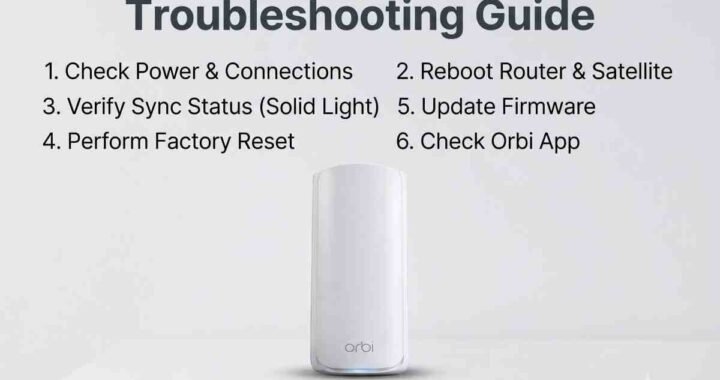
How do I troubleshoot my Orbi? Check your internet service, restart the network in order, test satellite placement, and review firmware before considering a factory reset.
Orbi Troubleshooting Decision Path
Follow the branch matching your symptoms. Make one change at a time and test the result.
- Only one device fails: restart it and reconnect WiFi. Test another device in the same location.
- Every device fails: check your provider’s outage status using mobile data, then follow the router checks.
- Only distant rooms lose connection: follow the satellite checks.
- Connections work but remain slow: follow the speed checksand compare results.
Orbi Router Troubleshooting: No Internet
Check cables and restart in order
For a router using a separate modem or gateway, follow this sequence. Never switch equipment off during an active firmware installation.
- Check the cable between the modem and Orbi’s Internet port.
- Turn off the satellites and router, then restart the modem.
- Wait for the modem’s connection indicators to stabilise.
- Start the router and let it finish booting.
- Start the satellites and test two devices near the router.
If this works: test the same devices near the satellite. If only that location fails, continue to satellite checks.
If this fails: check whether the modem has established service. Contact your provider for an outage or modem service problem. If service appears normal but Orbi remains offline, contact us through chat or email with your test results.
Check access and recent changes
Connect to your main network and open the Orbi app or local administration page. The administrator password may differ from your WiFi password. If you replaced equipment, review our How to setup Orbi router guide.
Orbi Satellite Troubleshooting: Restore Sync
A satellite needs a working connection back to the router, called backhaul. Move it closer and away from large metal objects before trying again.
- Confirm both units have power and have finished starting.
- Press the router’s Sync button.
- Press the satellite’s Sync button within two minutes.
- Wait for pairing to finish before moving the satellite.
NETGEAR specifies the two-minute pairing window and a 90–180-second blue indication after successful syncing on applicable models. See NETGEAR’s syncing instructions.
Check the light and connection result
On models covered by NETGEAR’s LED reference, blue indicates good backhaul, amber indicates fair backhaul, and magenta indicates missing backhaul or an IP-address problem. A satellite ring light turning off can indicate normal operation.
If syncing works: move the satellite to its intended position and test again. If the connection fails there, move it closer to the router.
If syncing fails: confirm model compatibility and record the light pattern. Contact us through chat or email with both model numbers and the steps you tried.
Fix Slow WiFi and Repeated Disconnections
Compare speeds near the router and satellite using the same device and test service. Pause large downloads so the comparison is more useful.
- Keep equipment uncovered and ventilation openings clear.
- Check Ethernet cables and connectors.
- Review access controls if only one device fails.
- Check supported router and satellite firmware releases.
Follow our Orbi Firmware update guide alongside your model’s instructions. Use the correct firmware and preserve power throughout installation.
If speeds improve: repeat the test later to check stability. If they remain poor: record results from both locations and send them to our team for further guidance.
Reader Worksheet: Record Your Results
This is a worksheet for your own observations, not evidence of testing performed by OrbiHelp. Complete it before and after each change using the same device and similar test conditions.
| Check | Before | After |
|---|---|---|
| Devices and locations affected | Your observation | Your repeat test |
| Satellite light and placement | Your starting condition | Your updated condition |
| Speed and disconnections | Your measurements | Your repeat measurements |
When Should You Factory Reset?
Reserve a factory reset for unresolved problems after basic checks. It erases custom configuration. Save your settings and provider requirements first, then follow your model’s instructions. If unsure, contact us before proceeding.
Frequently Asked Questions
What is the first check when Orbi stops working?
Test a second device and check your provider’s outage status to distinguish a device fault from a wider problem.
Why does Orbi show WiFi but no internet?
Local WiFi can work while the modem, Internet cable, or provider connection fails.
How to reconnect an Orbi satellite?
Move it closer, verify compatibility, and follow your model’s sync procedure.
Why does the satellite light turn off?
On many models, this indicates normal operation. Check connectivity and your model’s LED guide.
How to get help if these steps fail?
Use the website’s chat option when available, or email contact@orbihelp.info with your model numbers, symptoms, and completed checks.
Still Having Problems? Contact Us
If these steps do not resolve the issue, contact us through the website’s chat option when available, or email contact@orbihelp.info. Explain what failed and include:
- Your router and satellite models and firmware versions.
- The light pattern and affected devices or rooms.
- The steps attempted and your worksheet results.
These details help our team understand the problem and suggest the next checks. Do not include passwords in your message.