Netgear Orbi 970 Setup (2026 Guide): An Easy Step-by-Step Setup
For Netgear Orbi 970 setup can look a little intimidating when you first open the box. You have a router, one or more satellites, several Ethernet ports, QR codes, and an app asking you to follow a series of steps. The good news is that the actual setup is much easier once you do things in the right order.
The most common mistake I see during a new Orbi setup is powering everything on at the same time and then trying to figure out why the app cannot find the router or satellites. A cleaner approach is to start with the modem, connect the main Orbi router, and add the satellites only after the router is ready.
This guide walks you through the complete Netgear Orbi 970 setup in plain English. You do not need to be a networking expert. Just follow the steps in order and give each device enough time to start.
What You Need Before You Start
Before connecting anything, keep these items nearby:
- Your Orbi 970 router
- Your Orbi 970 satellite or satellites
- The included power adapters
- An Ethernet cable
- Your modem or ISP gateway
- A phone or tablet with the NETGEAR Orbi app
- The WiFi name, password, and QR code printed on the Orbi label
If you are replacing an older router, disconnect that router first. I also recommend restarting the modem before connecting the new Orbi. This gives the modem and Orbi a clean connection and can save you from unnecessary internet detection problems later.
How to Set Up the Netgear Orbi 970
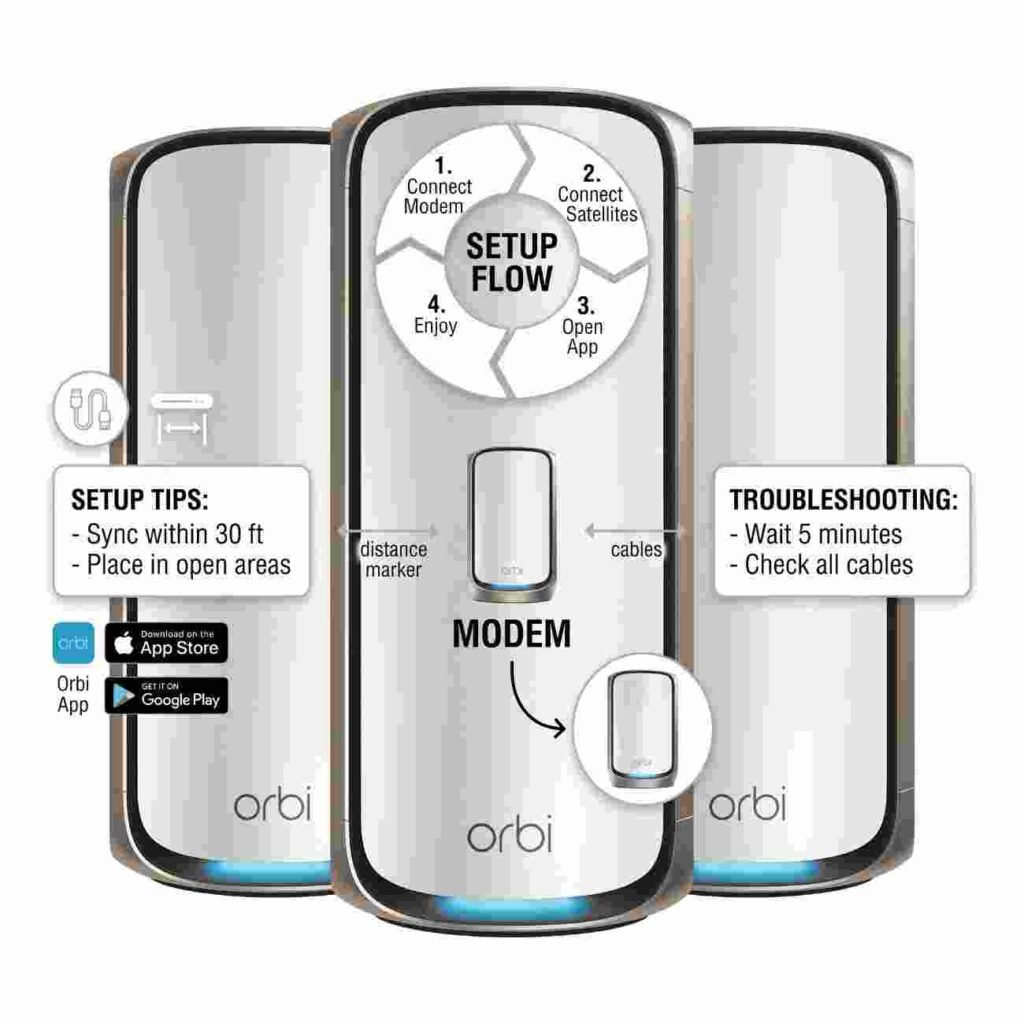
For Netgear Orbi 970 setup, Follow these steps in order. Do not worry if a device takes a few minutes to become ready. Mesh systems often need a little time during the first startup.
Step 1: Restart Your Modem
Unplug your modem from power. If an old router is still connected, disconnect it as well.
Wait about a minute, then plug the modem back in. Give it enough time to fully start. The exact lights vary by modem, but you want its normal internet or online light to become stable before moving on.
Starting with a properly working modem is important because your Orbi router needs to receive an internet connection from it during setup.
Step 2: Connect Your Orbi 970 Router
Take an Ethernet cable and connect your modem to the Internet port on the Orbi 970 router. Check both ends of the cable so you know they are firmly connected.
Now connect the Orbi router to power and turn it on.
Give the router time to boot instead of immediately opening the app. During startup, the light can change while the system prepares itself. Waiting here is much easier than troubleshooting a router that simply was not ready yet.
If you want a broader walkthrough of the basic Orbi installation process, our first-time Orbi setup guide explains the same router-to-modem connection in more detail.
Step 3: Open the NETGEAR Orbi App
Download and open the NETGEAR Orbi app on your phone or tablet. Sign in to your MyNETGEAR account, or create an account if you do not already have one.
Choose the option to install a new Orbi system. When the app asks for camera permission, allow it and scan the QR code on your Orbi router.
The app may ask your phone to join the Orbi's temporary or preset WiFi network. If it does, use the WiFi details printed on the router label.
One practical tip: keep mobile data turned off temporarily if your phone keeps leaving the Orbi WiFi because it does not have internet yet. Your phone needs to stay connected to the Orbi during this part of setup.
Step 4: Create Your WiFi Name and Password
Once the app finds the router and detects the internet connection, it will ask you to create your WiFi network.
Choose a WiFi name that is easy for you to recognize and create a strong password. Avoid using something obvious such as your phone number, address, or a password you already use for email or banking.
You will also be asked to create or confirm an administrator password. Your admin password protects the router settings, while your WiFi password allows devices to join the network. Keeping them different is a simple security habit that makes sense.
If you later need to open the router dashboard to change these settings, our Orbi login guide explains how to access the local admin page correctly.
Step 5: Add and Sync the Orbi 970 Satellites
Now you can power on the Orbi 970 satellite or satellites.
For the first sync, do not place a satellite at the opposite end of the house. Keep it reasonably close to the router until the system discovers and connects it. Once synchronization is complete, you can move it toward the area where you need better WiFi coverage.
This matters because a satellite cannot extend a connection it cannot receive properly. Putting a satellite directly inside a WiFi dead zone can actually make troubleshooting more confusing.
Let the Orbi app finish detecting the satellites before moving them. If a satellite does not appear, move it closer to the router and try again.
Step 6: Let the NETGEAR Orbi 970 Setup Finish and Check for Updates
Once the router and satellites are connected, allow the Orbi app to complete the setup. Do not unplug the router just because the WiFi starts working.
After installation, check for firmware updates. Installing current firmware can help with security, stability, device compatibility, and performance. If an update starts, leave the router and satellites powered on until they finish restarting.
Avoid running speed tests during an update. Wait until the entire Orbi system is back online first.
Orbi 970 Setup Not Working? Try These Simple Fixes
If the setup stops or the Orbi app cannot find your system, do not factory reset everything immediately. Start with the simple checks first.
- Check the Ethernet cable: Make sure your modem is connected to the Internet port on the Orbi router and the cable is secure at both ends.
- Restart the modem: Disconnect the Orbi router, reboot the modem, wait until the modem is fully online, and then reconnect the Orbi.
- Stay on Orbi WiFi: Your phone can switch to cellular data when the temporary Orbi network has no internet. Turn mobile data off for a few minutes if necessary.
- Move the satellite closer: If the router is working but a satellite will not sync, bring the satellite closer for the first connection. Move it to its final location afterward.
- Give the system time: A router or satellite that is still booting can look like a failed setup. Wait a few minutes before repeating steps.
- Try the web interface: If the app continues to give you trouble, connect a computer or phone to the Orbi network and try managing the router through its local web interface.
If the web login page itself will not open, follow our guide to fixing orbilogin.com problems before resetting the system.
A failed first setup does not automatically mean your Orbi 970 is faulty. In many cases, the problem is the modem connection, an Ethernet cable, the phone switching networks, or a satellite being too far away during its first sync.
Where Should You Place the Orbi 970 Satellites?
After everything is working, placement becomes more important than simply getting the satellites as far away from the router as possible.
Think of each satellite as a bridge. It needs a good connection to the mesh before it can provide a good connection to your devices. Start with a location between the router and the weak WiFi area, then test how your devices perform.
Walls, floors, large appliances, metal objects, and the layout of your home can affect WiFi. That is why there is no single perfect distance that works in every house.
Move a satellite gradually and test the connection where you actually use WiFi. Small placement changes can sometimes make a noticeable difference.
What Should You Do After the Orbi 970 Setup?
Once the setup is complete, reconnect your phones, laptops, TVs, smart-home devices, and other equipment to the new WiFi network.
Then take a few minutes to check the basics:
- Confirm that the router and satellites appear online in the Orbi app.
- Check for any remaining firmware updates.
- Review the devices connected to your network.
- Make sure your administrator password is secure.
- Test WiFi in the rooms where you normally use it.
- Run a speed test from more than one location instead of testing only beside the router.
Remember that WiFi speed is affected by more than the router itself. Your internet plan, phone or laptop capabilities, distance, walls, interference, and network traffic can all change the result you see.
Still Having Trouble With Your Orbi 970 Setup?
If your Orbi 970 still will not connect or one of the satellites refuses to sync, do not keep repeating the entire installation from the beginning.
Tell us exactly where the setup stops, what message you see in the Orbi app, and what the router or satellite light is doing. Those three details usually tell us much more than simply saying the Orbi is not working, and they make it easier to narrow down the next troubleshooting step.