How to Setup Orbi Router: Quick & Easy Installation
Setting up a new Orbi Mesh WiFi system should not require hours of trial and error. When the modem, main Orbi router, and satellites are connected in the correct order, you can create a reliable whole-home WiFi network without complicated networking knowledge.
If you want to Setup Orbi Router correctly, this guide walks you through the complete installation process. You will learn how to connect the modem, configure the router with the Orbi app, add satellites, understand the LED colors, choose better satellite locations, and troubleshoot common connection problems.
What You Need Before Orbi Router Setup
Preparing your equipment before starting the Orbi setup can prevent unnecessary interruptions. Keep the following items nearby:
- Orbi router: This is the primary unit that connects to your modem.
- Orbi satellite(s): These extend WiFi coverage to other areas of your home.
- Ethernet cable: Use the supplied cable to connect the modem to the Orbi router.
- Power adapters: You will need the appropriate adapter for each Orbi device.
- Smartphone or tablet: Useful for app-based installation.
- ISP information: Keep your internet account details available if your provider requires them.
- WiFi credentials: Decide on a network name and strong WiFi password.
If you are replacing an existing router, keep the old equipment available until the new Orbi network is working properly. This can make troubleshooting easier if your ISP or another device requires the previous configuration.
How to Set Up Your Orbi Router Step by Step
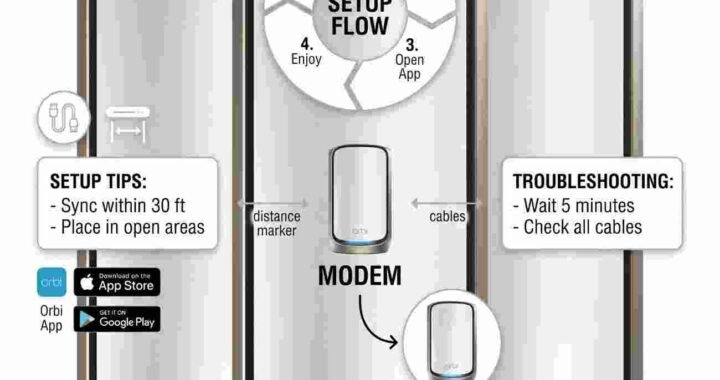
1. Power Off Your Modem and Existing Router
Start by turning off your modem. If you currently use a separate router, disconnect that device as well. NETGEAR's current setup instructions recommend unplugging the modem and existing router before connecting the new Orbi system.
Wait for the modem to fully power down before continuing. If your modem has a battery backup, follow the manufacturer's instructions for disconnecting it.
2. Connect the Orbi Router to the Modem
Take the Ethernet cable supplied with your Orbi system. Connect one end to an Ethernet port on your modem and connect the other end to the yellow Internet port on the back of the main Orbi router.
During the initial installation, connect the modem directly to the primary Orbi router. Do not connect the satellites to the modem.
3. Power On the Modem and Orbi Router
Plug the modem and Orbi router into their power outlets. Allow the modem to finish starting before continuing with the setup.
Depending on the model, the Orbi router can take several minutes to complete startup. Current NETGEAR instructions indicate that the router may take up to about five minutes before the setup process can continue.
4. Configure Orbi Using the Orbi App
The NETGEAR Orbi app is a convenient way to Setup Orbi Router from your smartphone or tablet. Install the official Orbi app, launch it, and sign in to your NETGEAR account or create an account if required.
Depending on your model, the app may ask you to enable camera access and scan the QR code located on the Orbi router or its packaging. Follow the instructions displayed by the app rather than skipping individual setup screens.
During the process, you may be asked to connect your phone to the default Orbi WiFi network. After connecting, create your personalized WiFi network name and password.
You should also create a separate administrator password for accessing your Orbi settings. For better security, do not use the same password for your WiFi network and router administrator account.
How to Connect and Sync Orbi Satellites
Once the main Orbi router has an internet connection, you can configure the satellites. For the initial synchronization, keep each satellite within a reasonable wireless range of the router.
If your satellite is not automatically detected, open the Orbi app and look for the option to Add Satellite. Follow the instructions shown for your particular model.
Manual Orbi Satellite Synchronization
If you need to manually sync the devices, make sure both the router and satellite are powered on. Press the Sync button on the Orbi router and then press the Sync button on the satellite within the time specified for your model.
If synchronization fails, move the satellite closer to the router and repeat the process. A satellite that is too far away during synchronization may not establish a reliable backhaul connection.
Understanding Orbi LED Lights
The LED indicators can help you determine whether the Orbi router or satellite has completed startup and whether the devices have established a connection. LED behavior varies by model, so use your model's documentation when necessary.
- Router solid white: On supported models, this indicates that the router is ready for setup.
- Router solid magenta: On supported models, this indicates that the router does not have an internet connection.
- Satellite solid blue: Usually indicates a good backhaul connection between the satellite and router.
- Satellite solid amber: Indicates a fair backhaul connection. Moving the satellite closer to the router may improve the connection.
- Satellite solid magenta: Indicates that the satellite does not have a backhaul connection or does not have an IP address on supported models.
NETGEAR states that the blue and amber satellite LEDs may remain visible for about three minutes before turning off, depending on the model.
Where Should You Place an Orbi Satellite?
Satellite placement has a major impact on mesh WiFi performance. A common mistake is placing the satellite directly in the area where WiFi is already extremely weak. The satellite first needs a strong enough connection to the Orbi router to distribute that connection effectively.
For initial setup, NETGEAR recommends placing Orbi satellites approximately 3 to 4 rooms away from the Orbi router or another Orbi satellite. After the system connects, you can adjust the final location based on your home's layout and connection quality.
Practical Satellite Placement Tips
- Keep the satellite elevated: Place it on a shelf, table, or open surface instead of directly on the floor.
- Avoid enclosed spaces: Do not hide the satellite inside a cabinet or behind large furniture.
- Reduce physical obstructions: Thick walls, large metal objects, and appliances can interfere with wireless signals.
- Do not place it at the edge of coverage: The satellite should still receive a usable signal from the router.
- Consider a wired backhaul: Compatible Orbi systems can use Ethernet to connect satellites to the router, which can provide a wired backhaul instead of relying solely on wireless communication.
Can You Set Up Orbi Without the Mobile App?
Yes. The Orbi app is not the only installation method. Compatible Orbi systems can also be configured through a web browser using a computer or mobile device connected to the Orbi network.
Newer Orbi routers may use orbilogin.local, while some older models use orbilogin.com. The correct address depends on the model.
If you need detailed instructions for accessing the router's administration page, read our guide: How to access Orbi Login Page .
What to Do If Orbi Has No Internet After Setup
If your devices can connect to the Orbi WiFi network but cannot access the internet, first determine whether the problem is with the ISP connection or the Orbi network.
- Check whether your modem has an active internet connection.
- Verify that the Ethernet cable is securely connected to the modem.
- Confirm that the other end is connected to the Orbi router's Internet port.
- Restart the modem and allow it to finish booting.
- Restart the Orbi router after the modem is online.
- Check whether your ISP requires PPPoE, VLAN, or other connection settings.
- Test the connection again from a phone or computer.
If the problem continues, read our dedicated troubleshooting guide: Netgear Orbi no internet connection .
Common Orbi Setup Problems and Solutions
Orbi Satellite Is Not Detected
Move the satellite closer to the primary router and try the synchronization process again. If you are adding an additional satellite, use the Add Satellite option in the Orbi app when supported by your model.
Orbi Satellite Shows Magenta
A magenta satellite LED can indicate that the satellite has lost its backhaul connection or has not successfully synchronized. Move it closer to the router, restart it, and attempt synchronization again.
Orbi Satellite Shows Amber
Amber generally indicates a fair connection. Try moving the satellite closer to the main router or another Orbi satellite while maintaining coverage of the area you want to improve.
WiFi Works but Internet Does Not
Your device can be connected to the Orbi WiFi network even when the router cannot reach the internet. Check the modem's internet connection first, followed by the Ethernet connection between the modem and Orbi router.
Orbi Login Page Will Not Open
Make sure your computer or mobile device is connected to the Orbi network. Then use the correct login address for your Orbi model. If necessary, restart the browser and reconnect to the Orbi WiFi network before trying again.
Frequently Asked Questions About Orbi Setup
How long does Orbi router setup take?
A basic Orbi installation can often be completed in about 30 minutes. The actual time depends on your modem, ISP, Orbi model, number of satellites, and whether additional troubleshooting is required.
Do I need the Orbi app to install my router?
No. The Orbi app is a convenient setup method, but compatible Orbi systems can also be configured through a web browser.
Where should I place my Orbi satellite?
For initial setup, NETGEAR recommends placing Orbi satellites approximately 3 to 4 rooms away from the Orbi router or another satellite. Once the connection is established, adjust the final location based on signal quality and your home's layout.
Why is my Orbi satellite not connecting?
The satellite may be too far from the router, synchronization may have failed, or the satellite may need to be restarted. Move it closer to the router and repeat the synchronization process.
What does a magenta Orbi light mean?
On supported models, a magenta satellite ring indicates that the satellite does not have a backhaul connection to the Orbi router or does not have an IP address. A magenta router ring can indicate that the Orbi router does not have an internet connection.
Can I connect an Orbi satellite using Ethernet?
Yes. Compatible Orbi systems support Ethernet backhaul, allowing a satellite to communicate with the router through a wired Ethernet connection rather than relying entirely on wireless backhaul.
What should I do if my Orbi has no internet after setup?
Check whether the modem has internet access, verify the Ethernet connection between the modem and Orbi router, restart both devices, and check whether your ISP requires additional connection settings.
Final Tips for a Successful Orbi Installation
A successful Setup Orbi Router process starts with a stable modem connection and continues with correct router configuration, satellite synchronization, and proper device placement.
Once you configure Orbi, test the WiFi connection from several areas of your home. If performance is weak in a particular room, adjust the satellite position before deciding that you need additional hardware.
If you experience installation errors, satellite synchronization problems, login issues, or connectivity failures, identify the source of the problem before changing multiple settings at once. Troubleshooting the modem, router, satellite, and WiFi connection separately makes it easier to find the actual cause.