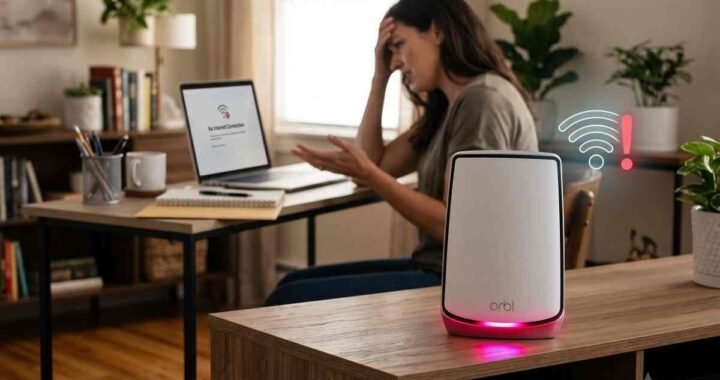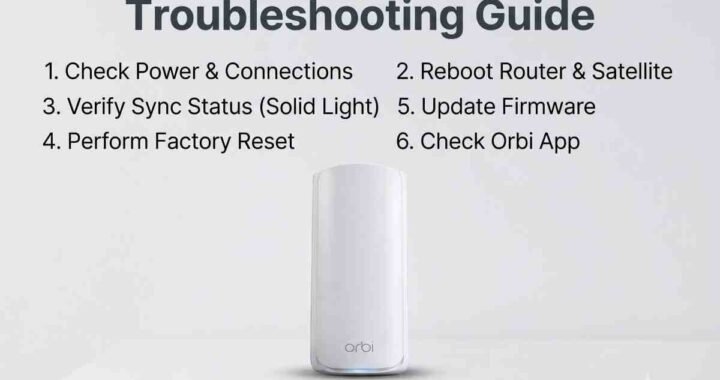
Your video call drops, the TV stops streaming, and your Orbi starts flashing white. Before you reach for the reset button, check whether the system is simply starting up or struggling to finish.
An Orbi blinking white light usually signals startup or connection activity, depending on the device and model. The light alone does not prove your router is broken. Here is how to identify the problem and work through the fixes without unnecessarily erasing your settings.
What Does an Orbi Blinking White Light Mean?
On many Orbi systems, a pulsing white router light means the router is powering up or responding to WPS activity. On a satellite, it can indicate startup or an attempt to connect to the router.
The important clues are when the flashing began, which unit is affected, and whether internet access returns. A brief pulse after restarting is different from a device that repeatedly restarts and never becomes available.
Check the Model and the Correct LED
Look at the model number on the device label before interpreting its lights. Orbi generations differ, and the rear power LED can mean something different from the front or ring LED.
On many models, a satellite briefly shows blue after establishing a good connection, then goes dark. An unlit status ring can therefore be normal when the device has power and Wi-Fi works.
Before You Start Troubleshooting
Take a minute to narrow down the symptoms:
- One satellite is affected: Test Wi-Fi near the main router.
- Every device is offline: Check the router and modem first.
- The issue followed an update: Check whether installation is still running.
- The issue followed a power outage: Check power connections and startup progress.
Use cellular data to check your internet provider’s outage information if home Wi-Fi is unavailable. An ISP outage can explain lost internet access, but the white light alone does not identify an outage.
How to Fix an Orbi Blinking White Light
1. Allow Startup or an Update to Finish
Give the system several minutes after turning it on. Repeatedly unplugging it restarts the process and makes diagnosis harder.
If the Orbi app or administration page shows a firmware update in progress, leave power connected and follow its instructions. There is no single waiting period that applies to every model and update. Continued pulsing without usable Wi-Fi deserves investigation once normal startup or the indicated update has finished.
2. Check Power and Ethernet Connections
Make sure each unit uses its correct power adapter and that the connector is fully seated. Check for a loose outlet connection, damaged cable, or obstructed ventilation.
For a separate modem and Orbi router, confirm that the modem’s Ethernet cable connects to the router’s Internet or WAN port. Reseat both ends; try a known-working Ethernet cable if the existing one looks damaged.
3. Restart the Affected Equipment in Order
If only one satellite is affected and the router works, restart that satellite first. If the entire network is offline and no update is running, use this sequence for a separate modem-and-router setup:
- Turn off the satellites and Orbi router.
- Disconnect the modem’s power for about 60 seconds.
- Reconnect the modem and wait for its normal online indicator.
- Power on the Orbi router and allow startup to finish.
- Turn on the satellites and test your connection.
Integrated cable Orbi systems and fiber installations have different equipment arrangements. Follow your provider’s restart instructions for its equipment; do not factory-reset the modem or optical network terminal.
4. Reconnect a Satellite That Will Not Sync
If Wi-Fi works near the router but an Orbi blinking white light persists on a satellite, temporarily move that satellite into the same room. Keep it in an open location and let it start up.
For many indoor Orbi systems, press the router’s Sync button, then press the satellite’s Sync button within two minutes. Check your model’s instructions because procedures can differ.
Once connected, move the satellite back gradually. Place it where it still receives a reliable router signal, rather than at the far end of an existing dead zone.
5. Check Firmware Once You Can Access the System
Open the Orbi app or local administration page and check firmware status. Use firmware intended for the exact router or satellite model; their files are not interchangeable.
For a manual update, follow the model’s instructions and release notes. NETGEAR generally recommends updating satellites before the router. Avoid starting repeated uploads if a device is unresponsive or already updating.
For additional connection checks, follow the Step by Step for Orbi Troubleshooting Guide.
6. Use a Factory Reset Only as a Last Resort
A reset erases personalized settings on the device, so record your network details first. If only a satellite is malfunctioning, troubleshoot that unit before resetting the whole system.
With the device powered on, follow its model-specific Reset button procedure. Many models require holding the recessed button until the power LED blinks amber. Allow the reset to finish, then set up or sync the device again.
If it still cannot complete startup, stop repeating resets and seek model-specific support.
Frequently Asked Questions
Why Is My Orbi Blinking White Light Not Going Away?
The device may be failing to finish startup or establish its connection. Check whether the problem affects the router or one satellite, then investigate power, syncing, and firmware in that order.
How Long Should Orbi Flash White?
Startup commonly takes several minutes, but timing varies by model and task. Follow any update progress shown in the app rather than assuming a fixed timeout means failure.
Why Is My Orbi Connected but There Is No Internet?
Your device can connect to local Wi-Fi even when the router has no working internet connection. Check the modem, WAN cable, and provider service; see the Netgear Orbi no internet guide for further checks.
Does a Flashing White Light Mean I Need a New Router?
No. An Orbi blinking white light alone does not establish hardware failure. If startup still fails after the checks above, contact Orbi Help with your model number, light pattern, and steps already tried to discuss the next troubleshooting step.