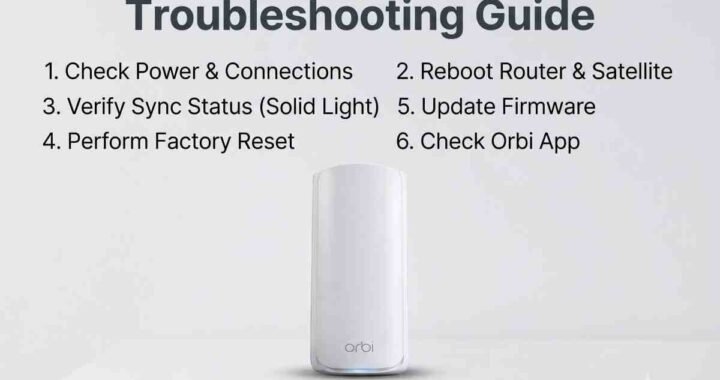
Why Is Your Orbi Satellite Not Syncing? Quick Solutions
Your Orbi satellite should extend the coverage of your mesh network, but that depends on a reliable connection with the main Orbi router. If the satellite refuses to connect, repeatedly shows magenta, disappears from the network, or stays offline, the problem may be related to synchronization, placement, firmware, or the connection between the two devices.
An Orbi Satellite Not Syncing problem does not automatically mean the hardware has failed. The fastest approach is to identify what the satellite is doing, check its LED status, move it temporarily beside the router, and then work through the connection in a logical order.
Note: OrbiHelp is an independent educational resource and is not affiliated with NETGEAR. LED behavior and synchronization instructions can vary between Orbi models, so use the model-specific NETGEAR documentation when instructions differ.
Quick Fix: What to Check First
If you need to restore the connection quickly, start with these checks before performing a factory reset.
- Make sure the Orbi router and satellite have stable power.
- Confirm that the main Orbi router is working normally.
- Move the satellite into the same room as the router.
- Wait until the satellite has finished starting up.
- For many Orbi models, press Sync on the router and then Sync on the satellite within two minutes.
- Watch the satellite LED and note whether it becomes blue, amber, or magenta.
- If synchronization still fails, check firmware and consider resetting the satellite as a later step.
This sequence helps separate a simple placement or synchronization problem from a more persistent configuration or hardware issue.
Why Is Your Orbi Satellite Not Syncing?
The satellite communicates with the router through the Orbi mesh backhaul. If that connection cannot be established, the satellite cannot properly join the mesh network.
The most common causes include:
- The satellite is too far from the router.
- The synchronization buttons were not pressed within the required period.
- The satellite has not finished booting.
- The router itself is experiencing a network or power problem.
- Firmware needs to be updated.
- The satellite has retained an incorrect configuration.
- Wireless interference or poor placement is affecting the backhaul.
- The satellite or power adapter may have a hardware problem.
Check the Orbi Satellite LED
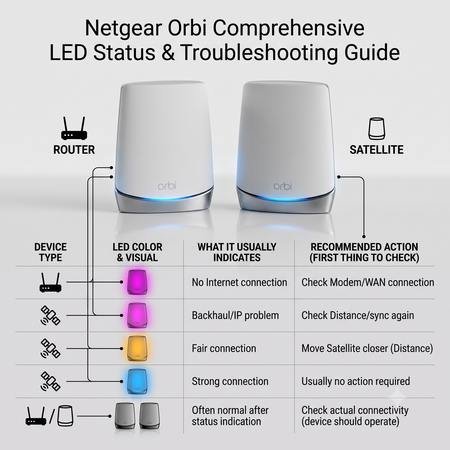
The satellite LED is one of the most useful diagnostic clues. On supported Orbi models, NETGEAR documents blue as a good backhaul connection, amber as a fair connection, and magenta as a failed or unavailable backhaul connection. The exact LED location and behavior can vary by model.
Blue light: connection is good
A blue satellite light generally indicates that the router and satellite successfully synchronized and the connection between them is good. If the satellite later becomes unreliable, investigate its final placement and power connection.
Amber light: connection is fair
An amber light generally indicates that synchronization succeeded but the connection between the router and satellite is only fair. Moving the satellite closer to the router can improve the backhaul connection.
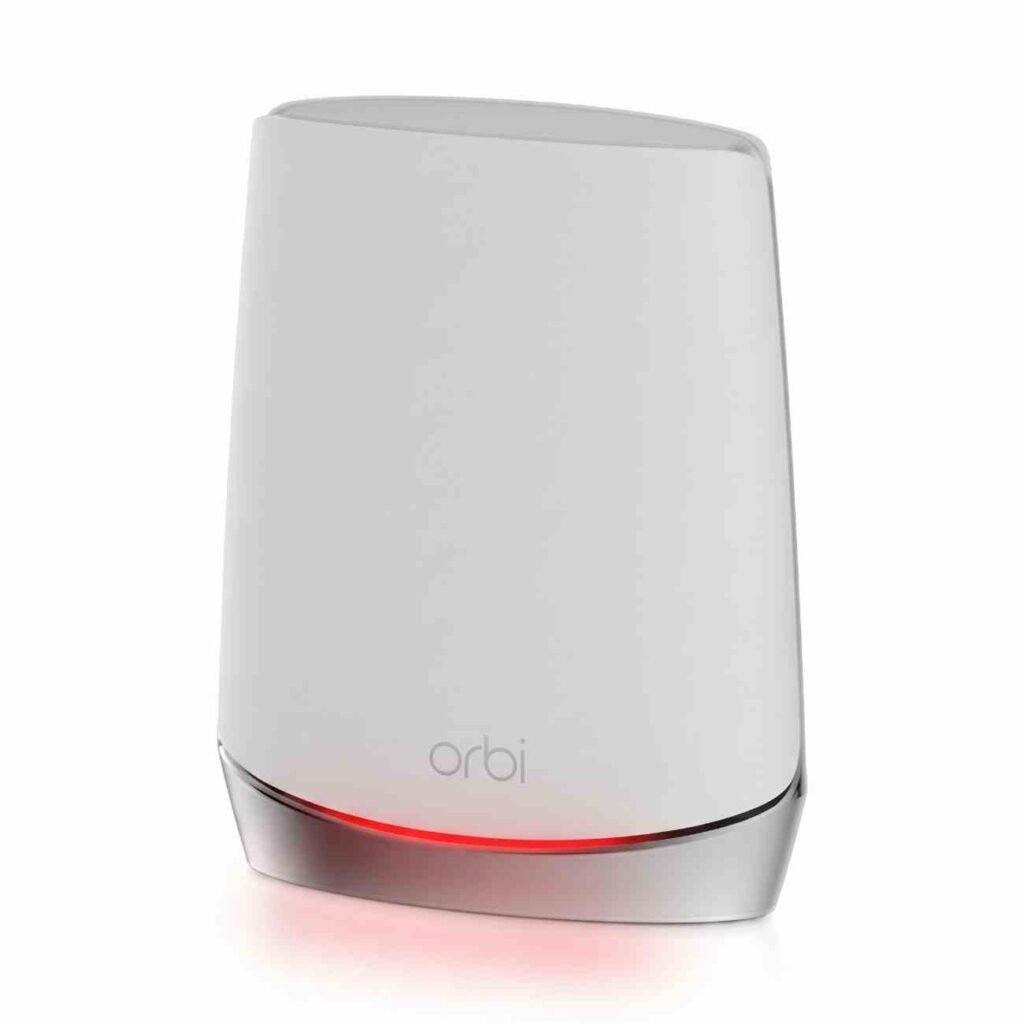
Magenta light: synchronization failed
A solid magenta satellite LED generally indicates that the satellite failed to synchronize or does not have a usable backhaul connection. NETGEAR recommends moving the satellite closer to the router and trying the synchronization process again.
Pulsing white: satellite is starting
A pulsing white satellite LED can indicate that the device is powering up or attempting to connect. Give it time to complete the startup process before repeatedly pressing the Sync button.
How to Sync an Orbi Satellite With the Router
Move the satellite close to the router
For troubleshooting, place the satellite in the same room as the main router. This is a temporary test location, not necessarily the final position you should use.
Make sure both devices are receiving power and allow the satellite to finish starting before beginning synchronization. NETGEAR's general instructions specifically recommend confirming power and placing the devices close enough to establish the connection.
Use the Sync buttons correctly
For many Orbi systems, press the Sync button on the router and then press the Sync button on the satellite within two minutes. Wait for the satellite to complete the synchronization attempt instead of repeatedly pressing the buttons.
Model-specific note: the Sync button location and exact LED behavior vary between Orbi models. Some model-specific instructions can use a different button sequence, so check the documentation for your particular satellite if the standard procedure does not match what you see.
Confirm the result
After synchronization, check the LED. A blue result indicates a good connection on supported models, while amber indicates a fair connection. If the satellite returns to magenta, leave it close to the router and repeat the procedure once before moving to the next troubleshooting step.
How to Fix Orbi Satellite Connection Problems
Check the main Orbi router first
Before troubleshooting the satellite, make sure the main router is powered on and operating normally. A satellite cannot establish a normal mesh connection if the router itself is offline or experiencing a network problem.
If the router has no internet connection, resolve that problem first. Then return to the satellite synchronization process.
Restart the Orbi network
A restart can clear temporary communication problems. Power down the modem, router, and satellite, then bring them back online in sequence.
- Turn off the modem and Orbi router.
- Power the modem back on.
- Wait for the modem's internet connection to stabilize.
- Power on the Orbi router.
- Allow the router to finish starting.
- Power on the satellite and wait for it to boot.
- Try synchronization again.
Improve satellite placement
If the satellite synchronizes successfully beside the router but fails after being moved, placement is an important suspect. Avoid putting the satellite inside cabinets, behind large objects, or at the extreme edge of the router's usable range.
Move it gradually toward the area where coverage is needed. If the connection changes from blue to amber or becomes unreliable, try a location closer to the router.
Check the Orbi firmware
Firmware should also be checked when synchronization problems persist. NETGEAR provides procedures for checking router and satellite firmware and manually updating a satellite when necessary.
For detailed instructions, see our guide on How to update the Orbi Firmware.
Reset and pair the satellite again
If the satellite continues to refuse synchronization after the previous checks, a factory reset may clear an old or incorrect configuration. Treat this as a later step because resetting removes the satellite's current configuration.
After the reset, keep the satellite close to the router and repeat the appropriate synchronization procedure for your model. NETGEAR specifically recommends reset-and-sync troubleshooting for certain models, such as the RBK13/RBS10 system.
Orbi Satellite Not Syncing vs. No Internet
These problems can look similar but are not necessarily the same.
- Satellite not syncing: The satellite cannot establish its connection with the Orbi router.
- Satellite connected but no internet: The mesh connection may be working while the wider internet or WAN connection has a problem.
- Satellite keeps going offline: The satellite connects initially but later loses its connection or backhaul.
Identifying which situation you have prevents unnecessary resets and helps you focus on the correct part of the network.
What If the Orbi Satellite Keeps Going Offline?
If the satellite successfully syncs but repeatedly disappears, focus on the connection after synchronization rather than repeating the same Sync procedure indefinitely.
Check its final location, power adapter, firmware, and backhaul quality. If you are troubleshooting an RBS50 specifically, see our guide on Orbi RBS50 showing offline for additional synchronization steps.
Does the Fix Depend on Your Orbi Model?
Yes. Orbi systems have different generations and product families, so the LED location, Sync button location, startup behavior, and exact synchronization instructions can differ.
Before applying model-specific instructions, check the model number printed on the router or satellite. NETGEAR's synchronization documentation itself notes that the Sync button and LED locations vary by satellite model.
This is particularly important if you are using an older RBS-series satellite, an Orbi Pro product, an outdoor satellite, or a newer Orbi system. Do not assume that a procedure written for one model applies identically to every Orbi device.
Troubleshooting Decision Path
Use this quick decision path if you are unsure which step to try next:
- No power: Check the power adapter, outlet, and power button.
- Router is offline: Troubleshoot the main router or internet connection first.
- Satellite powers on but will not sync: Move it beside the router and perform manual synchronization.
- Blue LED: Synchronization succeeded. Test the satellite at its intended location.
- Amber LED: The connection is fair. Move the satellite closer.
- Magenta LED: Synchronization failed. Move it closer and retry.
- Still failing beside the router: Check firmware and model-specific instructions.
- Still failing after reset: Consider a configuration or hardware problem and seek technical assistance.
When Should You Contact Technical Support?
If the satellite will not synchronize even when it is beside the router, has stable power, and has been restarted or reset, the remaining issue may require model-specific troubleshooting.
Before contacting support, record the Orbi model number, satellite LED behavior, firmware versions, whether the satellite appears in the Orbi app or router interface, and which troubleshooting steps you have already completed.
Frequently Asked Questions
Why is my Orbi satellite not syncing?
An Orbi satellite may fail to sync because it is too far from the router, the synchronization process was not completed correctly, power is unstable, firmware is outdated, or the satellite needs to be reset and paired again.
Why is my Orbi satellite showing a magenta light?
A magenta satellite light generally means the satellite failed to establish a backhaul connection with the Orbi router or does not have an IP address. Move the satellite closer to the router and try synchronizing again.
How do I manually sync my Orbi satellite?
For many Orbi models, place the satellite near the router, press the Sync button on the router, and within two minutes press the Sync button on the satellite. Because procedures vary between models, follow the instructions for your specific system if they differ.
How far should an Orbi satellite be from the router?
For troubleshooting, place the satellite in the same room as the router. After it successfully syncs, move it gradually to a location where it can maintain a reliable connection.
Can firmware cause an Orbi satellite to stop syncing?
Yes. Outdated firmware or firmware-related compatibility problems can contribute to synchronization issues. Check the firmware versions of the router and satellite and update them when appropriate.
What should I do if my Orbi satellite keeps going offline?
Check the satellite LED, move it closer to the router, restart the Orbi network, manually synchronize the devices, check firmware, and reset the satellite if the earlier troubleshooting steps do not resolve the problem.
Get Your Orbi Satellite Connected Again
An Orbi Satellite Not Syncing problem is usually easier to diagnose when you work from the simplest checks toward the more advanced ones. Start with power and the main router, move the satellite close to the router, perform the correct Sync procedure, and use the LED result to decide what to do next.
If the satellite still will not connect after these steps, avoid repeatedly resetting it without identifying the model-specific cause. Contact a qualified technical support professional with your Orbi model number, LED status, firmware information, and troubleshooting results so the remaining problem can be diagnosed more efficiently.